 EN
EN ES
ES DE
DE FR
FR NL
NL IT
IT JA
JA PT
PT PL
PL KO
KO
SharePoint Authentication Options for ReplaceMagic
Choosing the Right Authentication Mode
Download ReplaceMagic Videos: How to use ReplaceMagic
ReplaceMagic supports multiple SharePoint authentication methods to suit different environments — from standard Microsoft 365 login to Multi-Factor Authentication, App-Only certificates and legacy protocols. Select the mode that matches your SharePoint version and security configuration.
ReplaceMagic can access SharePoint 2013, 2016 (also 2010 in beta mode) plus also SharePoint.Online (O365).
At the end it is very simple - when you open "SharePoint Browser" form
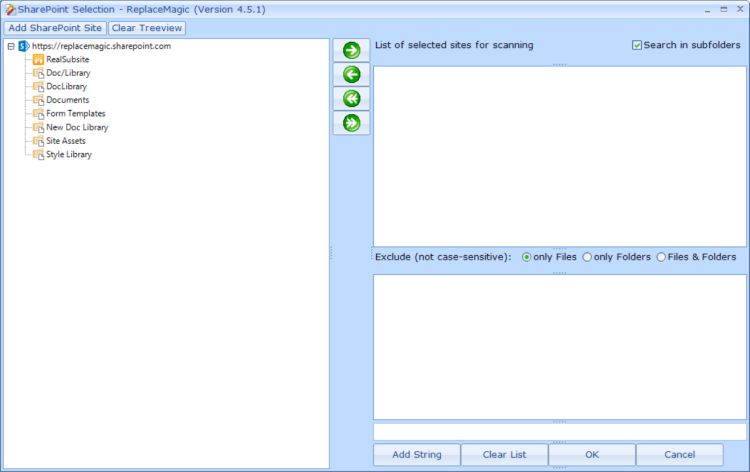
just click on button "Add SharePoint site" to come to SharePoint authentication form where you can enter necessary data to connect to your SharePoint site.
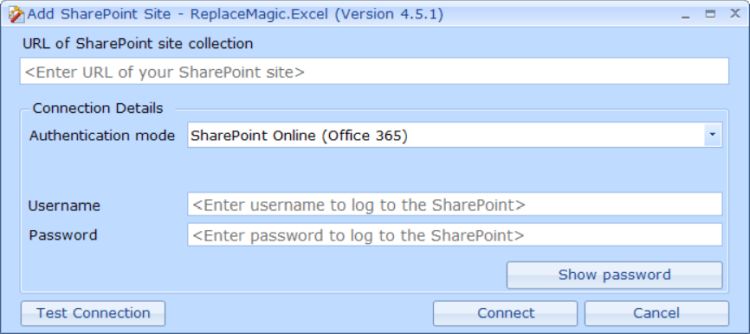
Most used authentication modes:

- Windows Authentication (NTML or Kerberos) - mainly for on premise versions of SharePoint 2019/2016/2013/2010
- SharePoint Online - like name says to be used when you want to process broken links in SharePoint Online
- Web Logon - to be checked when you have SharePoint Multi Factor Authentication and/or you disabled SharePoint Legacy Authentication Mode
- App only - if you want you can create SharePoint App-only credentials for ReplaceMagic run. You can either check ReplaceMagic help or Google Microsoft articles
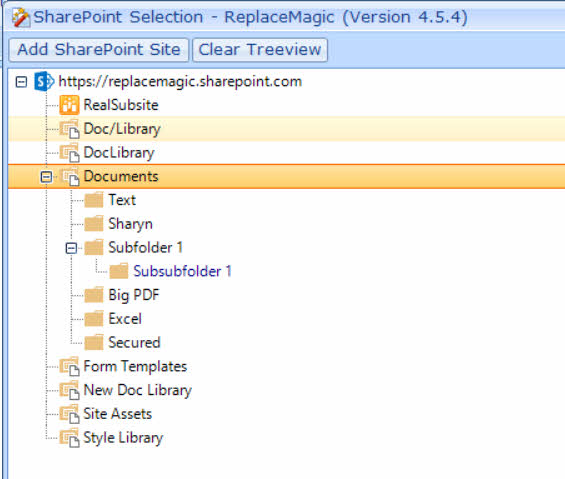
When you enter all data you can click on either "Test connection" and ReplaceMagic will report if connection is working or you can directly click on button "Connect". If all is ok you will see treeview filled with SharePoint sites, document libraries or folders:
Quick Reference: Which Mode to Use?
- SharePoint Online (standard login, no MFA): use "SharePoint Online (Office 365)"
- SharePoint Online with MFA enabled: use "Multi-factor authentication (BETA)" or create an app password and use standard mode — see SharePoint MFA setup
- SharePoint Online with legacy auth disabled: use "App-Only Authentication" — see App-Only Authentication
- SharePoint on-premises (Active Directory): use "Windows Authentication (NTLM or Kerberos)"
- SharePoint on-premises (no AD): use "Web Logon" which opens a browser window
- Older on-premises environments: use "Legacy Auth Mode" — see Legacy Authentication Mode
Testing Your Connection
- After entering credentials, click the "Test Connection" button
- If successful, the SharePoint tree view appears showing your sites and libraries
- If failed, check: correct URL format, credentials correct, network access to SharePoint, correct authentication mode
- Common error: using Windows Authentication for SharePoint Online (these are separate modes)
Download ReplaceMagic Videos: How to use ReplaceMagic
Main drivers for ReplaceMagic and SharePoint(beside to fix your documents) were:
- ReplaceMagic can keep document properties of documents stored on SharePoint
- ReplaceMagic can do SharePoint check-out / check-in
- ReplaceMagic can forcefully check-in documents that are checked-out
- Good performances
- Competative price for customers
In case of any questions please do not hesitate to contact us.


