 EN
EN ES
ES DE
DE FR
FR NL
NL IT
IT JA
JA PT
PT PL
PL KO
KO
How to Select Document Locations for Scanning in ReplaceMagic
Before ReplaceMagic can scan for broken links, you tell it where your documents are stored. You can select individual files, a single folder, multiple folders, or a SharePoint site — all from the same Scan Documents tab.
Download ReplaceMagic Watch Video Tutorials
Opening the Location Selection
Go to the Scan Documents tab and look for the location selection controls in the bottom-right area of the tab. You will see a row of four icons — each representing a different way to point ReplaceMagic at your documents.

Location selection controls in the Scan Documents tab (left to right): Select File(s), Select Folder, Select Multiple Folders, Select SharePoint.
Option 1 — Select Individual Files
When to use: you know exactly which documents need scanning, or you want to test on a small set before running a full library scan.

Click the first icon (file icon) to open the file browser. Navigate to the folder containing your documents — the lower-left panel lists all files in the selected folder. Double-click a file or use the arrow buttons to move files into the selection list. Hold Ctrl while clicking to select multiple files at once. Click OK when your selection is complete.
Option 2 — Select a Single Folder
When to use: all your documents are in one folder (and optionally its subfolders). This is the most common option for network share migrations.
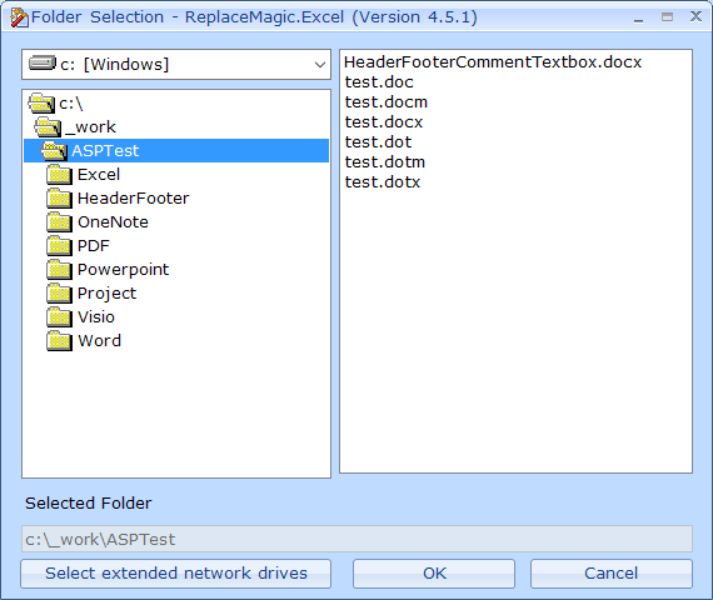
Click the second icon (folder icon) to open the folder browser. Navigate to and select the root folder of your document store. To include all subdirectories in the scan, enable Search in Subfolders in the scan options before starting the scan.
Tip: for migrations from a file server or NAS, pointing ReplaceMagic at the top-level share root with Search in Subfolders enabled is the fastest way to capture every document in one pass.
Option 3 — Select Multiple Folders
When to use: documents are spread across several different folders or drives that need to be scanned together in one run.

Click the third icon to open the multiple-folder selection form. Add each folder path to the list; all selected locations are scanned in the same run and the results are combined into a single result set.
This form also lets you set folder and file exclusion filters. For example, if your folder tree contains folders named Backup that you do not want to scan, add "Backup" as an exclusion keyword and ReplaceMagic will skip any folder whose name contains that word.
Option 4 — Select SharePoint
When to use: documents are stored on SharePoint Online, SharePoint on-premises, Teams or OneDrive for Business.
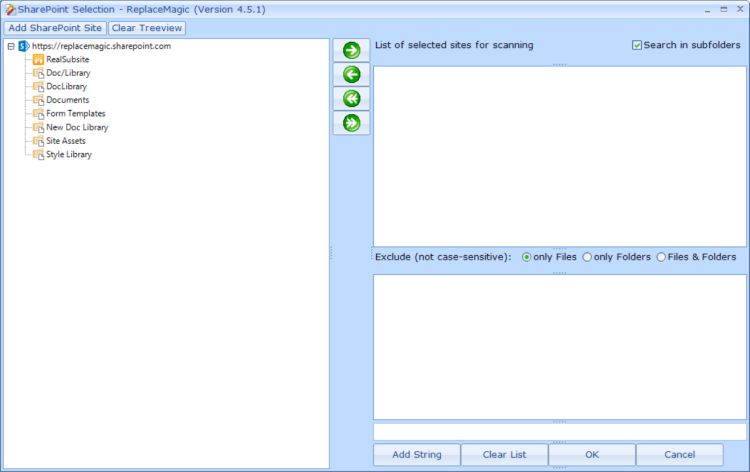
Click the rightmost icon to open the SharePoint connection dialog. ReplaceMagic connects natively to SharePoint — no drive mapping required. Native integration allows ReplaceMagic to preserve last-modified date, author and editor metadata, and to honour check-in/check-out rules configured by your SharePoint administrators.
For full details on authenticating and selecting document libraries, see the SharePoint location selection guide.
Tips for Choosing the Right Option
- For large migrations: use Multiple Folders to combine all source locations in one scan run — results from all paths are merged automatically.
- For SharePoint migrations: always use the SharePoint option for native API access. It is faster, preserves document metadata, and supports check-in/check-out without drive mapping.
- For testing: use Select File(s) to validate your replacement strings on a sample of 5–10 documents before processing the full library.
- Mixing local and SharePoint: you can scan local folders and SharePoint libraries in separate runs and combine the exported results, or run ReplaceMagic on multiple machines in parallel using a volume license pack.
Download ReplaceMagic Watch Video Tutorials
In case of any questions please do not hesitate to contact us.


