 EN
EN ES
ES DE
DE FR
FR NL
NL IT
IT JA
JA PT
PT PL
PL KO
KO
How to Export Broken Link Scan Results from ReplaceMagic
After scanning your documents or completing a replacement run, ReplaceMagic lets you export the results in multiple formats. Use exports for audit reporting, stakeholder sign-off, migration project documentation, or to import results into another system.
Download ReplaceMagic Watch Video Tutorials
What You Can Export
- Scan results (Scan Documents tab): the full document inventory — every file found, its type, link count, broken link count, file size and dates
- Hyperlinks tab results: all found hyperlinks with broken/valid status
- OLE links, Link Sources, Power Queries, Pivot results: each result tab has its own export covering the link-level detail for that area
- Replacement results: a log of every change made during a replacement run — essential for audit documentation
Export from the Scan Documents Tab
Use the Export button in the Scan Documents tab to export the complete document inventory:

The export includes: document path, file type, total links found, broken link count, file size and file dates. This is the recommended export to create your pre-migration baseline.
Export from Result Tabs (Hyperlinks, OLE etc.)
Each result tab — Hyperlinks, OLE Links, Link Sources and so on — has its own export button that covers the link-level detail for that area:

The export includes: document path, link value, link type, broken/valid status, and the document area where the link was found. This level of detail is useful for sharing with end users to confirm which links were broken before a migration.
Available Export Formats
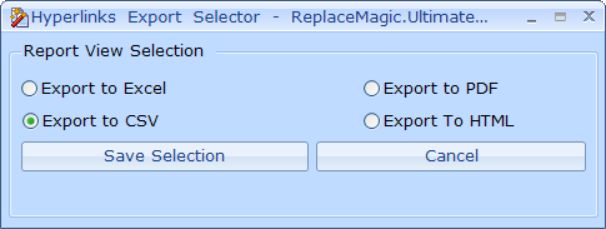
- CSV: universal format compatible with Excel, databases, BI tools and migration project management software
- Excel (.xlsx): formatted workbook with column headers, ready for filtering and pivot tables
- PDF: formatted report for printing or sharing as a read-only document
- HTML: formatted report for sharing with stakeholders who do not have Excel
The Scan Documents tab also offers these additional export modes:

- Export for Import files (CSV only): creates a CSV formatted for re-importing back into ReplaceMagic later — use this when you want to reload a scan without re-scanning
- Single export file — all tabs as separate worksheets: exports all result tabs into one Excel workbook, with one worksheet per tab
- Single export file — all results merged in one sheet: creates a single-worksheet workbook with all results combined for easier filtering and pivot analysis
Saving and Reloading Scan Runs
ReplaceMagic can save a complete scan run — documents and results together — so you can reload it later without re-scanning. This is useful when:
- You want to split a large library across multiple scan sessions
- You need to share results with a colleague running ReplaceMagic on another machine
- You want to perform the scan and the replacement run at different times or on different machines
See the Import Data guide for details on reloading a saved scan run.
Using Export Data for Migration Planning
- Export before migration: establish a baseline of all links and their current broken/valid status — this is your pre-migration audit record.
- Export after migration: compare the broken link count before and after the replacement run to verify repair success.
- Excel analysis: use the CSV or Excel export in Excel to filter by broken status, sort by document location, and create pivot tables by file type or department folder.
- Prepare replacement strings: export the list of broken links, manipulate it in Excel to derive the search and replacement strings, then import those strings back into ReplaceMagic — see the Import Data guide.
Download ReplaceMagic Watch Video Tutorials
In case of any questions please do not hesitate to contact us.


